
Summary
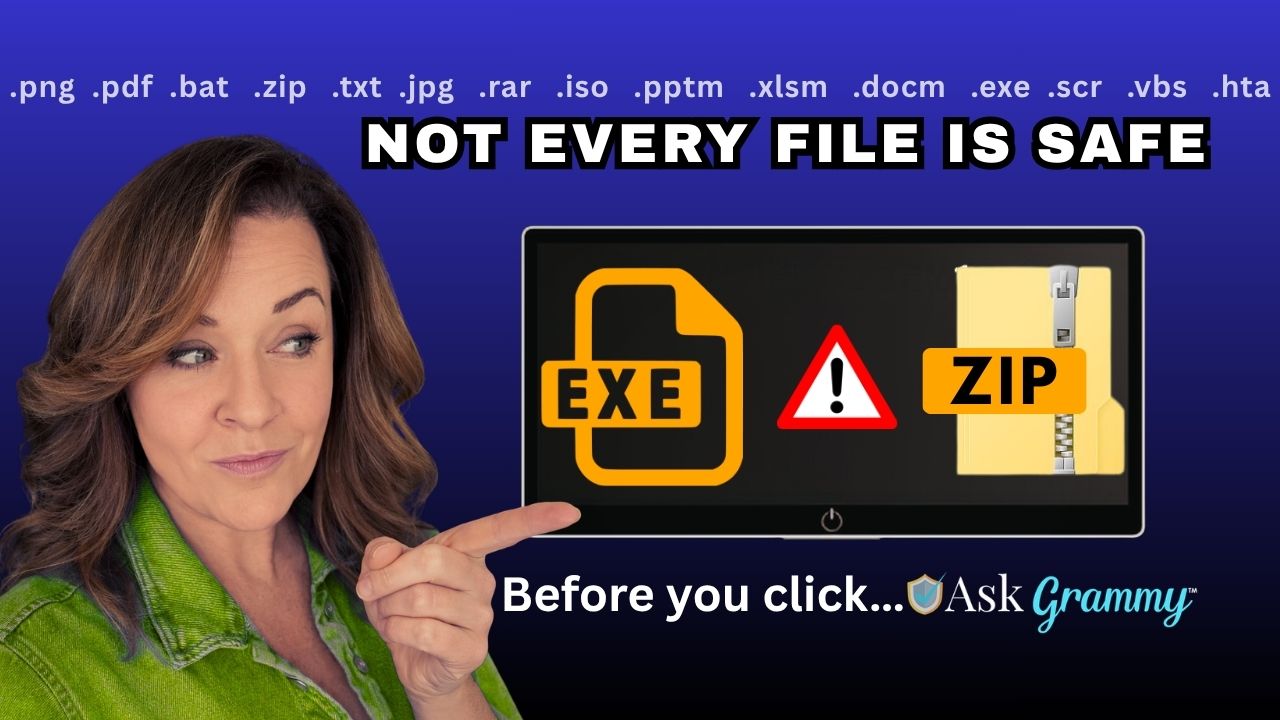
Some files don’t just open… they run. In this guide, I’ll show you which file types scammers use most, how to spot the red flags, and a simple rule that can help keep your computer safe.
If a stranger handed you a pill and said, “Trust me, just take this,” you wouldn’t do it.
But every day, people double-click files from strangers without a second thought.
And sometimes, that’s all it takes.
Let’s talk about something most people never think about, but scammers rely on all the time: file extensions.
Before we dive in, I’ve put together a simple, printable cheat sheet of the most dangerous file types and what to watch for. You can download it here and keep it near your computer:
Download Grammy’s File Safety Cheat Sheet (by clicking on the link to the left or on the download button under the document displayed below) to keep near your computer. It’s safe. It’s free. It doesn’t even require you to enter an email address!
What is a file extension, anyway?
It’s the little ending at the end of a file name. The part after the dot.
photo.jpgdocument.pdfinvoice.zip
That ending tells your computer what kind of file it is.
Here’s the important part: Some files are just things you look at. Others are things your computer runs.
And if your computer runs the wrong thing, it can install malware, steal information, or give someone access to your system.
A simple way to think about it
Some files are like photos in an album. You open them and look.
Others are like tools or machines. When you open them, they do something.
That’s where the risk comes in.
🟢 Usually safe (but still use common sense)


These are generally just for viewing:
- .pdf – documents
- .jpg / .png – images
- .txt – plain text
These don’t usually install anything on their own.
But still… if a stranger sends you something unexpected, don’t assume it’s safe just because it “looks harmless.”
🟡 Be careful with these
These are common in scams because they can hide what’s inside:
- .zip / .rar – compressed folders
- .iso / .img – disk images (like a virtual USB drive)
- .docm / .xlsm / .pptm – documents with macros
Think of these like sealed boxes.
You don’t really know what’s inside until you open them.
And scammers love that.
🔴 High-risk file types
These can run code on your computer right away:
- .exe – programs
- .bat / .cmd – command scripts
- .vbs / .js / .ps1 – script files
- .scr – screensavers (yes, really)
- .lnk – shortcuts that can point to malicious files
- .hta, .cpl, .jar – less common, but still risky
These aren’t just files you open.
They are files that do things.
And sometimes those things are very bad.
Now here’s the part most people don’t realize
Files like .exe and .zip are not automatically bad.
In fact, they’re how legitimate software gets installed on your computer every day.


- A .exe file might be the installer for a program you chose to download
- A .zip file might contain photos, documents, or software files
So the question isn’t: “Is this file dangerous?”
The real question is: “How did this file get to me?”
A simple rule that will protect you
The #1 question: Did I go get this file… or did it come to me?
- If you went to get it from a company’s official website, it’s usually fine
- If it showed up out of the blue, be very cautious
That one question can save you a lot of trouble.
What scammers count on
Scammers don’t just send random files. They wrap them in stories that feel urgent and important. Like these:


They might say:
- “Here’s your invoice”
- “You missed a delivery”
- “Your account has been locked”
- “Listen to this voicemail”
And then they attach a file.
Often a .zip or something disguised to look harmless.
Let’s talk about trusted names
This is where a lot of people get tripped up.
You might get a message that looks like it’s from:
- PayPal
- Amazon
- Microsoft
- Internal Revenue Service
And it may look very convincing.
But here’s the truth:
These companies do not send you unexpected attachments to open.
If you receive a random file claiming to be from one of them, that’s your red flag.
What real companies actually do
They don’t send mystery files.
- They send emails with links, not attachments
- They ask you to log into your account
- They keep documents inside their own systems
A simple way to remember it:
Real companies send you to their website. Scammers send files to your computer.
Common tricks to watch for
Scammers are clever, but once you know the tricks, you’ll spot them faster.
- Double extensions
invoice.pdf.exe(it’s not a PDF) - Hidden extensions
Looks likeinvoice.pdfbut isn’t - Fake icons
A program that looks like a document - Password-protected ZIP files
So security software can’t scan them
What to do instead
If something feels even a little off:
- Don’t open the file
- Don’t click anything inside it
- Go directly to the company’s website yourself
- Log in and check your account there
The bottom line
Files like .exe and .zip aren’t the enemy.
They’re tools… UNLESS they are in the wrong hands. Then, they’re one of the easiest ways for scammers to get into your computer.
So remember this:
- If you weren’t expecting it, don’t open it.
- If you don’t recognize the ending, don’t trust it.
- And if a big company sends you a surprise file… it’s probably not them.
Stay safe out there.
Grammy’s got your back.